1
What is Mergee?
Mergee is a family calendar app designed to help families keep school events, activities, reminders, and household plans together in one calm, organised place.
Find clear answers about signing in, OTP codes, invite codes, joining a family, adding events, reminders, recurring events, plans, upgrades, downgrades, and cancellations.
These answers explain what Mergee is and who it is designed for.
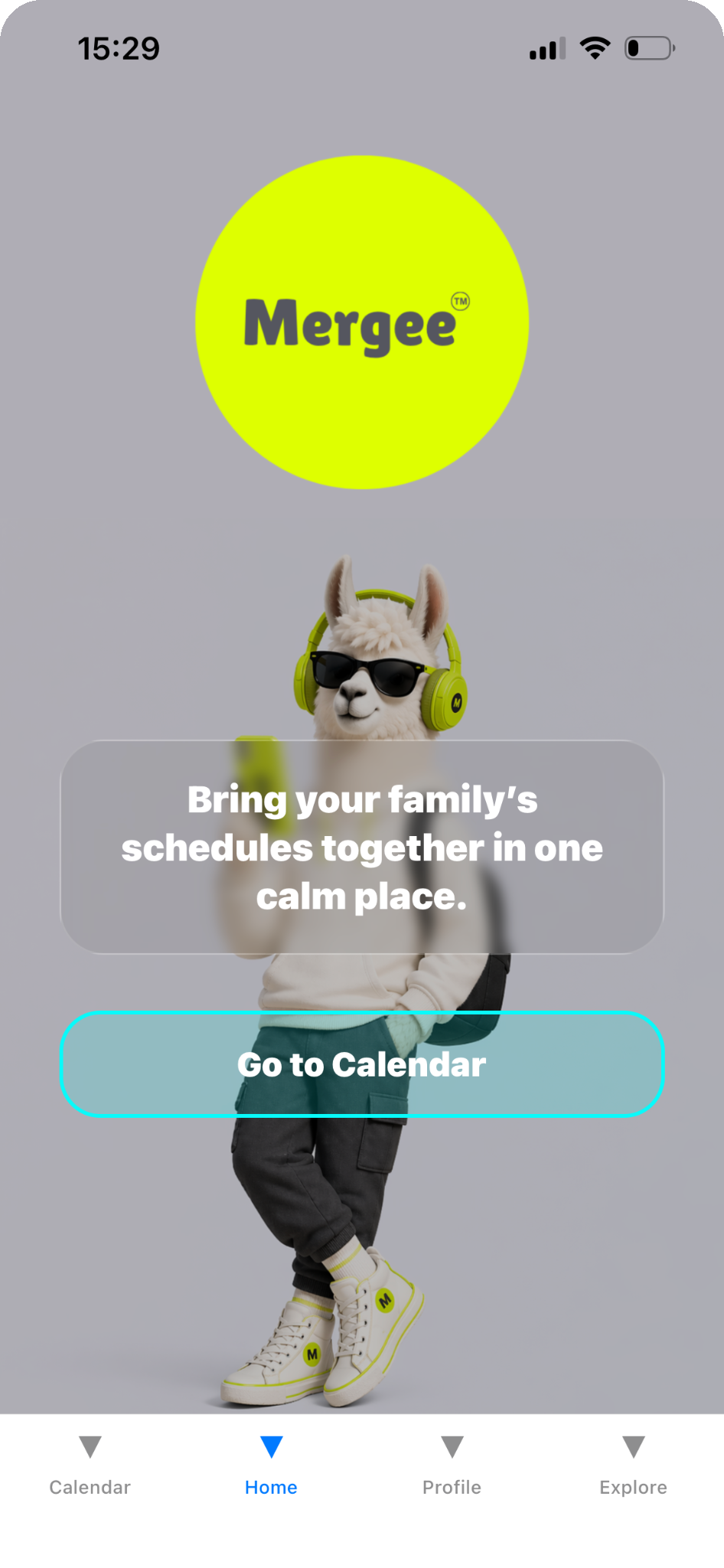
Mergee is a family calendar app designed to help families keep school events, activities, reminders, and household plans together in one calm, organised place.
Mergee is for parents, guardians, and families managing school schedules, activities, reminders, household plans, and shared family responsibilities.
Mergee helps families keep events in one shared calendar, add events per child, colour-code events by child, add reminders on paid plans, create recurring events on paid plans, and share a household calendar with family members.
Mergee uses passwordless email OTP sign-in, so users do not need to create or remember a password.
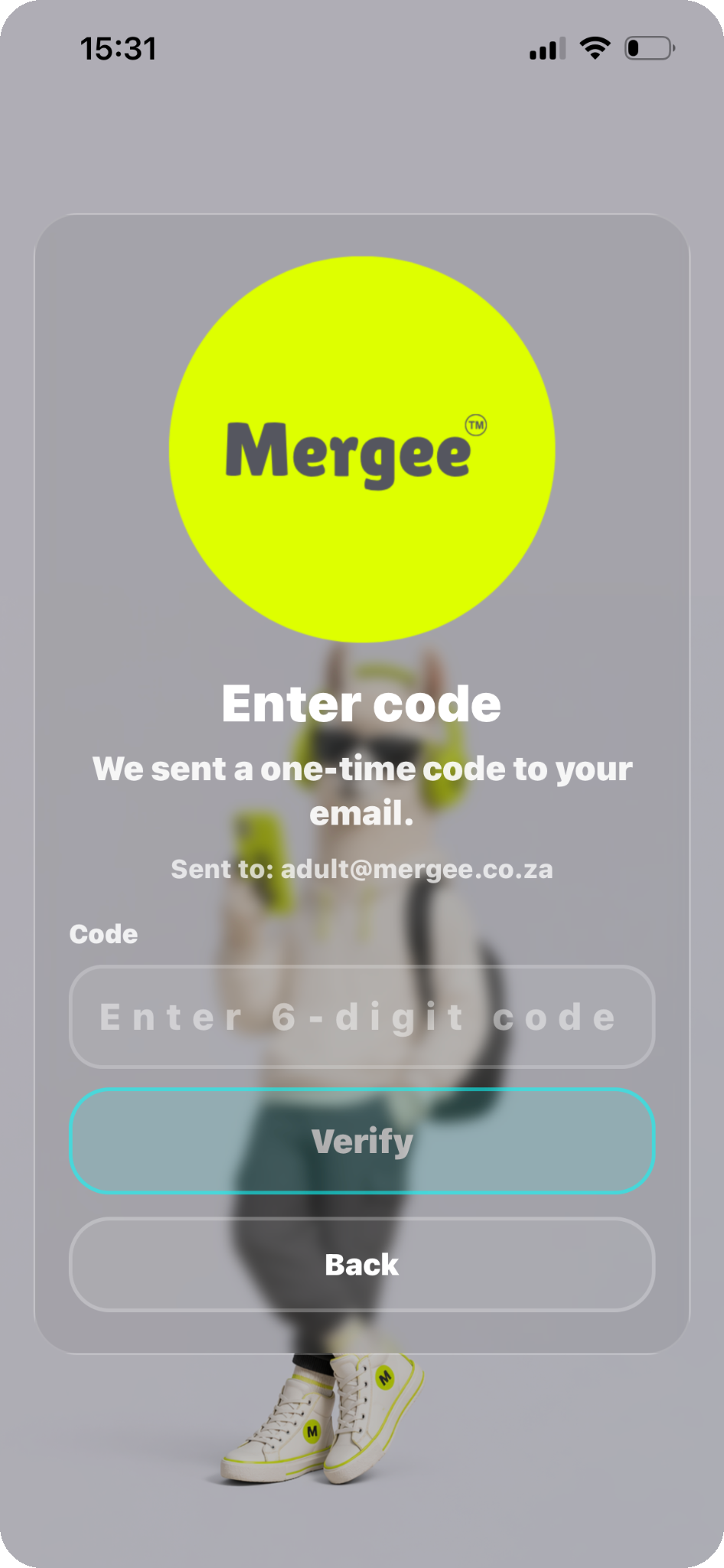
Open Mergee, enter your email address, tap Send code, check your email inbox, then enter the one-time code in the app.
No. Mergee uses passwordless email sign-in. You sign in using a one-time code sent to your email address.
An OTP is a one-time code sent to your email address. It is used to sign in securely to Mergee.
Check your inbox, spam or junk folder, and Gmail Promotions or Updates tabs if you use Gmail. Also make sure the email address was typed correctly.
Mergee uses invite codes to connect people to a family household.
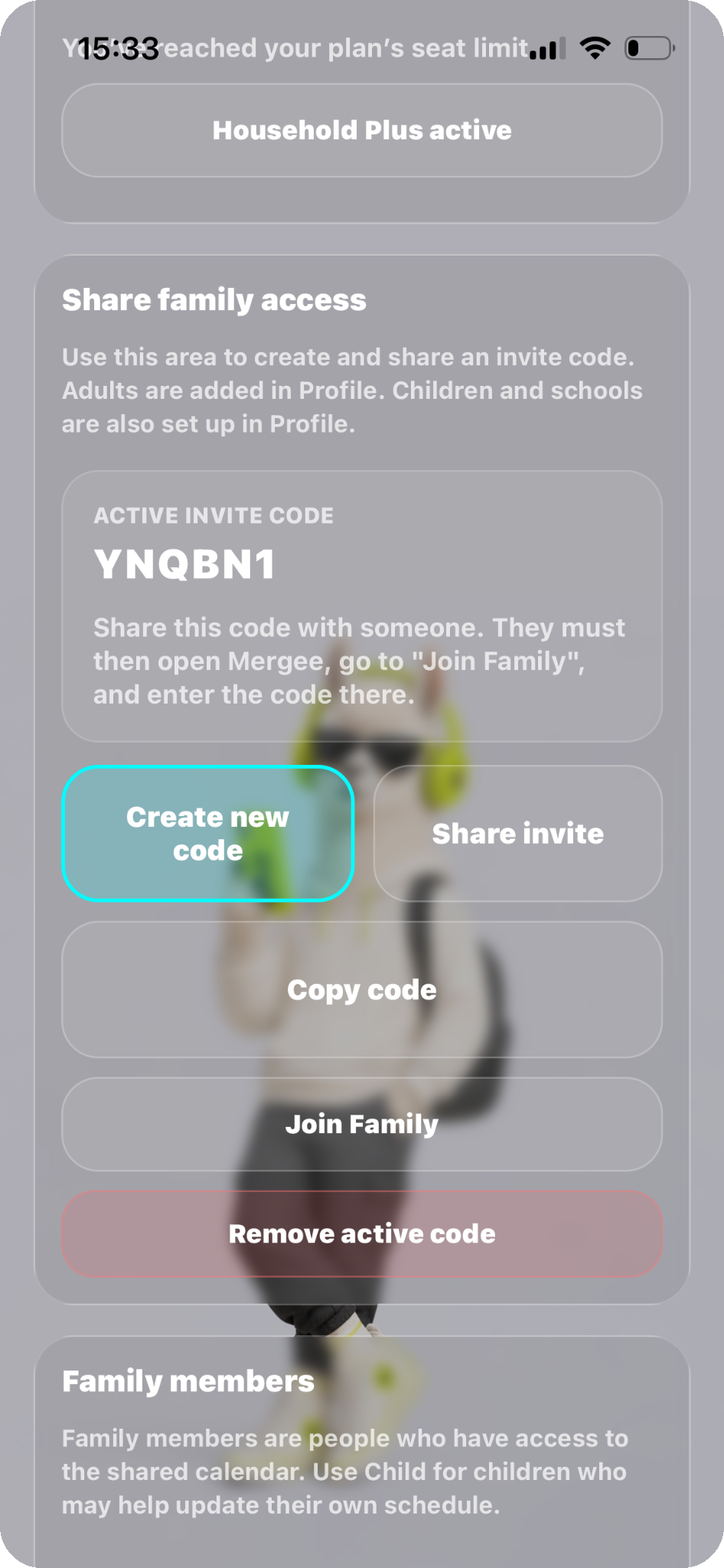
An invite code is used to join a family household. It is entered after the invited person has signed in with their own email address.
No. The OTP code signs you into Mergee. The invite code connects you to a family household. First sign in with your email OTP, then enter the family invite code to join the household.
No. Invite codes are not emailed automatically by the app. The family owner creates or views the invite code in Mergee and shares it manually with the person joining.
The owner can share the invite code manually by WhatsApp, SMS, email, or by copying and pasting it into a message.
The owner is the first adult who sets up the family. The owner manages the household, children, events, plan, invites, and household access.
Adults can help manage the shared family calendar. Adults can usually view family events, add events, edit events, and help manage the calendar.
Child accounts can be used so children can view relevant family activities and manage their own entries where allowed. Child access is more limited than adult access.
Mergee helps families see events by date, child, and colour.
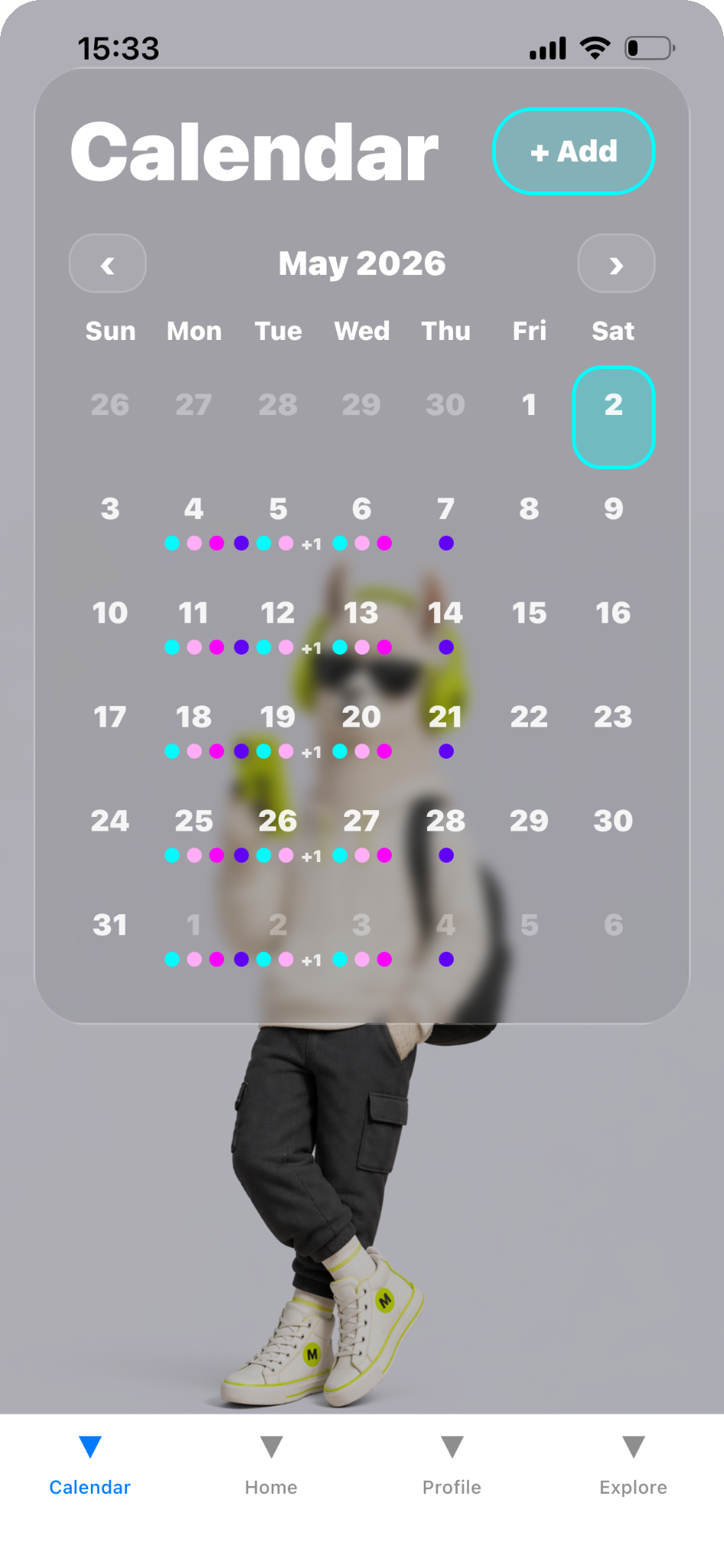
You can add school activities, sports, reminders, appointments, household plans, and family commitments.
Yes. Each event can be linked to a child, which helps Mergee show the correct colour dot on the calendar and keep each child’s schedule clear.
Each child can have a colour. When a day has an event for that child, their colour appears as a dot on the date.
Tap a day on the calendar. Mergee will show the events for that selected day, including event details and which child each event belongs to.
Open the calendar, tap the day with the event, select the event, tap Edit, update the details, and save the changes.
Open the event, tap Delete, and confirm that you want to delete it. The event is then removed from the family calendar.
Reminders and recurring events are paid-plan features.
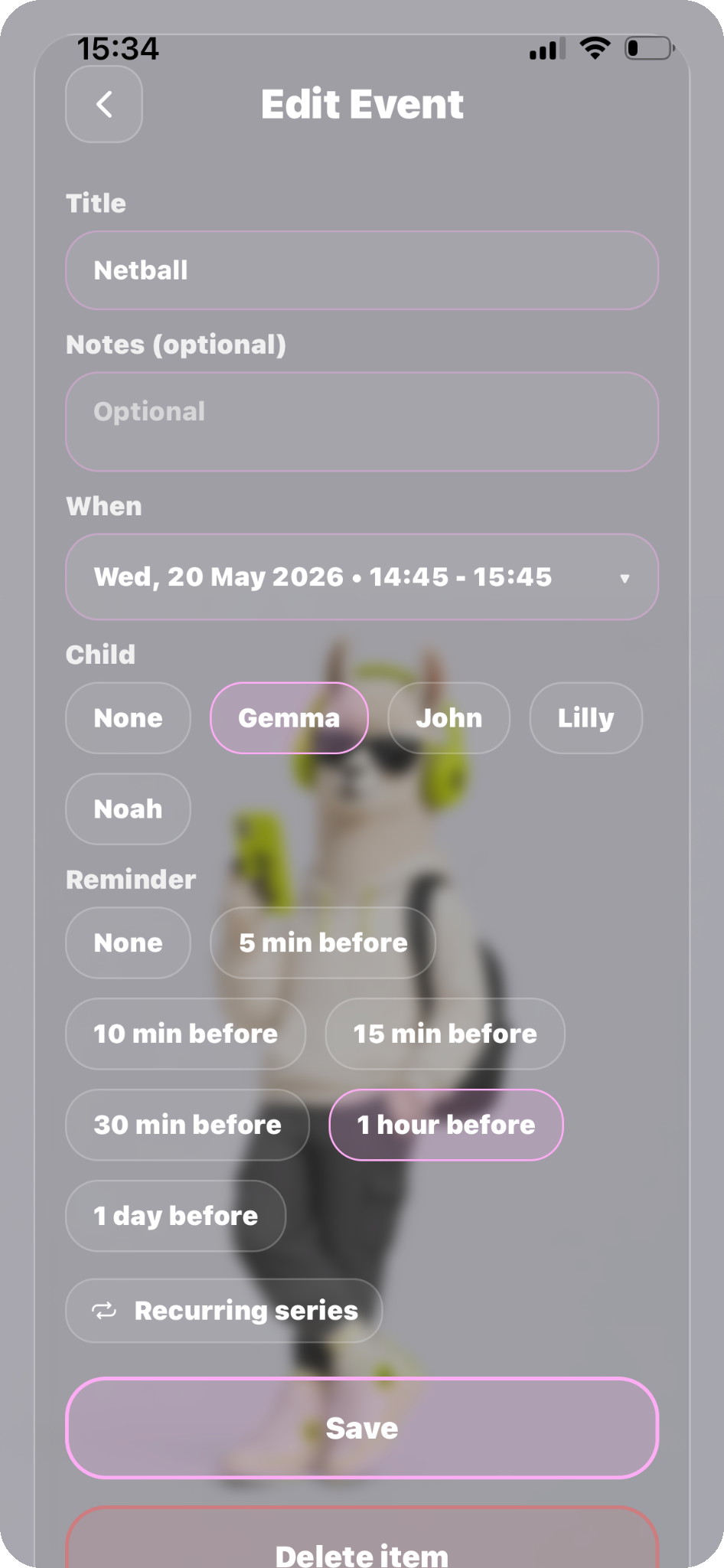
Yes. Reminders are available on paid plans. If your plan includes reminders, you can choose a reminder time when adding or editing an event.
Reminder options may include none, 5 minutes before, 10 minutes before, 15 minutes before, 30 minutes before, 1 hour before, or 1 day before.
Yes. Recurring events are available on paid plans. They are useful for activities that happen every week or repeat over time, such as rugby practice, choir, tutoring, or hockey.
Mergee has one free plan and three paid household plans.
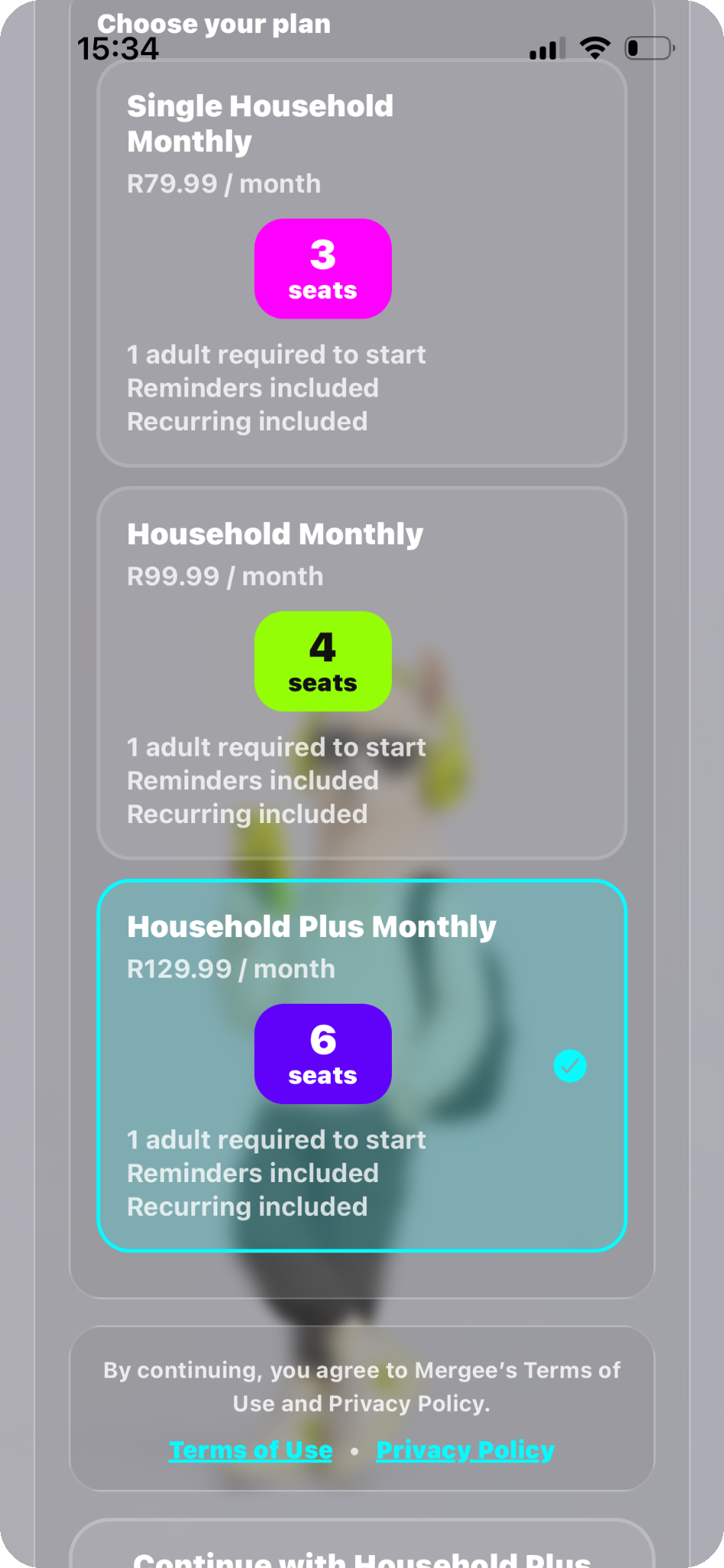
The free plan includes one adult required to start, one child included, a maximum of 10 events, no reminders, and no recurring events.
Paid plans unlock more seats, reminders, recurring events, and shared family calendar access.
A seat is a place in the household. A seat can be used by an adult or a child. The plan controls how many seats are available, and the household must always have at least one adult.
Mergee may show the Premium screen when you reach a free-plan limit or try to use a paid feature, such as adding more than the free event limit, adding reminders, adding recurring events, or adding more household seats than your current plan allows.
Downgrades are managed through the app store where your subscription was created. Open your app store subscription settings, find Mergee Calendar, open your subscription, choose the available plan or subscription option, and follow the store prompts to confirm.
Subscriptions are cancelled through the app store where your subscription was created. Open your app store subscription settings, find Mergee Calendar, open the subscription, select Cancel Subscription, and follow the store prompts to confirm.
If a plan is downgraded or cancelled, paid features may no longer be available after the subscription period ends. This may affect reminders, recurring events, and the number of available household seats.
The Profile screen is where users can manage account and family details.

The Profile screen lets users see who is signed in, see their role, see the current plan, manage the plan, choose language, manage schools, view family or household access, access pending adult invites, and access pending child change requests.
Yes. Mergee supports English and Afrikaans. Go to Profile, find Language, choose Eng or Afr, and the app interface updates to the selected language.
The setup guide walks you through signing in, creating your family, adding children, adding events, inviting family members, and understanding plans.